Creating an invoice might seem daunting at first, but it is incredibly simple once you follow the correct format. A professional, clear invoice helps you get paid faster and minimizes client confusion.
Step 1: Add Your Business Information
Your client needs to know exactly who the invoice is coming from. Start by adding your business details clearly at the top:
- Name: Your full name or registered business name.
- Address: Your business mailing address.
- Contact details: A reliable phone number and email address.
- Logo: A professional touch to build brand recognition.
Step 2: Add Client Information
Equally important is properly identifying the client you are billing:
- Client name: The contact person or company name.
- Address: The client's business address.
- Email: The best address to send the digital invoice.
Step 3: Add Invoice Details
Organize the billing timeline and reference information to make accounting easier for both parties:
- Unique invoice number: A sequential ID (e.g., INV-001) to easily reference the document.
- Issue date: The date you are sending the invoice.
- Due date: The clear deadline for payment (e.g., Net 30).
Step 4: Add Items
Provide a detailed breakdown of the products or services rendered so the client knows exactly what they are paying for:
- Description: A brief, clear note of the work done or item sold.
- Quantity: Hours worked, or items delivered.
- Rate: Your hourly rate or fixed price per unit.
- Total: The calculated cost per line item.
Step 5: Add Tax and Total
Display the final amount clearly to avoid any miscalculations:
- VAT / GST: Any applicable taxes depending on your region.
- Grand total: The final sum the client owes. Make this highly visible.
Step 6: Add Payment Terms
Make it easy for your client to pay you. State exactly how you expect to receive the funds:
- Bank details: Account name, number, and routing codes.
- PayPal / Stripe info: Direct links or emails to online payment processors.
- Payment deadline: Reiterate the final due date to emphasize urgency.
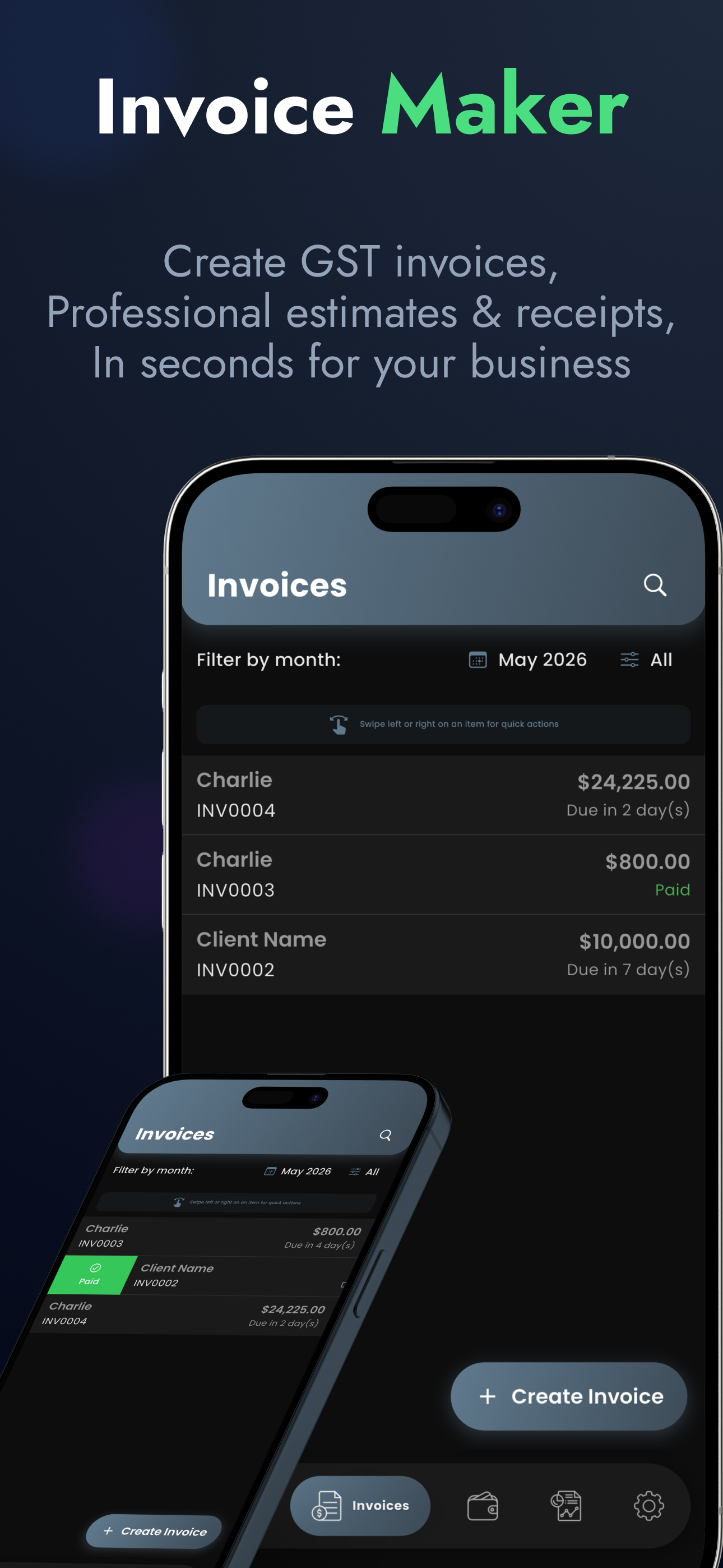
While you can do this manually in a spreadsheet, using an invoice app simplifies this process down to under 30 seconds. With auto-calculated totals, saved client profiles, and built-in templates, you can send polished invoices straight from your phone.
Create Your First Professional Invoice Now
👉 Streamline your billing instantly with Invly.
Download Invly Free